Getting Started
We recommend that you get started with our API by using an API wrapper in the language of your choice. Whether you choose to use a wrapper or not, this guide includes all the details you need to start building things.
Grab a Wrapper
Our API wrappers are going to make your job much easier. Right now we have wrappers available for Ruby, Python, PHP, Java, .NET, Perl, and Objective-C that cover all of the functionality available in the API and make it a cinch to work with. No really, go and grab one now.
For lots of you, having an API wrapper and its accompanying documentation will be enough to get started. Next up, select the area of the API you’d like to work with (such as Account, Campaigns, Clients, etc) from the menu above. For those looking at rolling their own solution or interested in learning more about how the API works, we’ve expanded on that below.
Authentication
The Campaign Monitor API currently supports two methods of authentication: OAuth or via an API key.
OAuth2 and API key authentication both have their own particular merits, however, and you should likely be using one over the other depending on what you are looking to accomplish.
Should I Use OAuth or an API Key to authenticate?
OAuth is best used if you are working on an integration or tool that will be used by multiple third-parties. Your app requests only the permissions it needs (for example, just “ImportSubscribers” for an integration that concerns itself with updating, adding or deleting subscribers), and the user logs into Campaign Monitor with their email address and password rather than trying to use “ApiKeys” that they may be unfamiliar with. It is more complex for the integrator, but definitely a more cohesive experience for the user.
API key authentication is more accessible and easy to work with than oAuth. It’s a great option if you are looking to test whether a certain call or snippet of code will work as expected, or if you are a small company just looking to build your own internal integration to work with.
Authenticating with OAuth
We use the OAuth 2 protocol to allow websites or applications to request authorization to a Campaign Monitor account without requiring the account username and password. Authenticating using OAuth is preferred over using an API key with Basic Authentication.
Register an Application
To authenticate using OAuth, you’re going to need to register an OAuth Application. To do this, log into your Campaign Monitor account, click Integrations in the top navigation (you may need to select a client first to see the option), then select OAuth Registration in the right sidebar. From there you’ll be asked for a few details to register your OAuth app.
Once you’ve registered your app, it will be assigned a unique Client ID and Client Secret. You’ll need to specify these two details when using our API wrappers (which is recommended), or if you’re not going to use an API wrapper, you’ll need these details when your application requests access tokens (details below).
Permissions
Any application which authenticates using OAuth must specify which permissions it requires when requesting access tokens. All valid permissions are listed below. You’ll need to refer to these permissions when you follow the authentication flows described below.
ViewReportsPermission to view reports.ManageListsPermission to manage lists.CreateCampaignsPermission to create campaigns.ImportSubscribersPermission to import subscribers.SendCampaignsPermission to send campaigns.ViewSubscribersInReportsPermission to view subscribers in reports.ManageTemplatesPermission to manage templates.AdministerPersonsPermission to administer persons.AdministerAccountPermission to administer your account.ViewTransactionalPermission to view transactional reports and logs.SendTransactionalPermission to send transactional email.AutomationPermission to view journey reports.
Web Application Flow
These are the steps for authenticating from a web application.
1. Direct users of your application to:
https://api.createsend.com/oauth?type=web_server&client_id={client_id}&redirect_uri={redirect_uri}&scope={scope}&state={state}
Details of query string parameters:
typeREQUIRED – MUST beweb_serverclient_idREQUIRED – The Client ID you received when you registered your application.redirect_uriREQUIRED – Where we will redirect your users once the OAuth call is made. This must start with the redirect URI provided when you registered your application.scopeREQUIRED – The permission level requested by the integration.
This is a comma separated list of valid permissions as documented above. So for example, if you wanted to request permission to send campaigns and view reports, you would providescopeasSendCampaigns,ViewReports(which, when URL-encoded would beSendCampaigns%2CViewReports)stateOPTIONAL – Any additional state to be included in the redirection call.
2. The user of your application approves (or doesn’t approve) your application.
3. The user of your application is redirected to the redirect_uri with the following query string parameters:
codeA unique code generated by Campaign Monitor.stateAny state data provided in step 1.
4. Your application should then make a POST request to the following URL:
https://api.createsend.com/oauth/token
Including the following data:
grant_type=authorization_code&client_id={client_id}&client_secret={client_secret}&code={code}&redirect_uri={redirect_uri}
Details of POST data:
grant_typeMust beauthorization_codeclient_idTheclient_idas per step 1.client_secretThis must be the secret you received when you registered your application.codeThe code as per step 3.redirect_uriTheredirect_urias per step 1.
The response to this POST request will be a JSON object of the form:
{
    "access_token": "SlAV32hkKG",
    "expires_in": 1209600,
    "refresh_token": "tGzv3JOkF0XG5Qx2TlKWIA"
}
Details of the response data:
access_tokenThe OAuth token to use for further API calls.expires_inThe number of seconds for which access_token is valid.refresh_tokenA long-lived token which can be used to obtain a new access token.
So for example, if your application initiated an OAuth exchange by directing a user to:
https://api.createsend.com/oauth?type=web_server&client_id=1&redirect_uri=https%3A%2F%2Fsender.example.com%2Fintegrate&scope=CreateCampaigns%2CSendCampaigns%2CViewReports&state=somedata
Assuming the user approved your application, Campaign Monitor would then redirect your user to:
https://sender.example.com/integrate?code=abc123&state=somedata
Upon receiving this request, your application should then make a POST request to the following URL:
https://api.createsend.com/oauth/token
Including the following data:
grant_type=authorization_code&client_id=1&client_secret=hanshotfirst&code=abc123&redirect_uri=https%3A%2F%2Fsender.example.com%2Fintegrate
This request would then result in the following JSON response:
{
    "access_token": "SlAV32hkKG",
    "expires_in": 1209600,
    "refresh_token": "tGzv3JOkF0XG5Qx2TlKWIA"
}
Non-Web Application Flow
These are the steps for authenticating from desktop or other applications.
1. Direct users of your application to:
https://api.createsend.com/oauth?type=user_agent&client_id={client_id}&redirect_uri={redirect_uri}&scope={scope}
Details of query string parameters:
typeREQUIRED – MUST beuser_agentclient_idREQUIRED – The Client ID you received when you registered your application.redirect_uriREQUIRED – Where we will redirect your users once the OAuth call is made. This must start with the redirect URI provided when you registered your application.scopeREQUIRED – The permission level requested by the integration.
2. The user of your application approves (or doesn’t approve) your application.
3. The user of your application is redirected to the redirect_uri with the following parameters in the hash of the URL:
access_tokenThe OAuth access token to use for further API calls.expires_inThe number of seconds for whichaccess_tokenis valid.
So for example, if your application initiated an OAuth exchange by directing a user to:
https://api.createsend.com/oauth?type=user_agent&client_id=1&redirect_uri=https%3A%2F%2Fsender.example.com%2Fintegrate&scope=CreateCampaigns%2CSendCampaigns%2CViewReports
Assuming the user approved your application, Campaign Monitor would then redirect your user to:
https://sender.example.com/integrate#access_token=abc123&expires_in=1209600
Errors during OAuth exchange
Error handling within the oAuth exchange depends on the type of error encountered. Errors related to end-user information (credentials, permissions etc) are shown to the end-user during the oAuth exchange, errors related to the integration will result in the end-user being sent to an error page.
Possible integration errors are:
invalid_requestRequired parameters were not supplied.unknown_clientTheclient_iddid not match a registered integration.invalid_redirect_uriTheredirect_uridid not begin with the redirect URI registered for the application.server_errorSomething went wrong at the Campaign Monitor end.unknown_scopeUnrecognised permissions were requested via thescopeparameter.access_deniedThe end-user did not grant authorisation.
Possible end-user errors are:
- Invalid credentials.
- Insufficient permissions – The end-user did not have the permissions required by the integration.
Notes on the Redirect URI
A redirect URI must be a sub-URI of the redirect URI value entered when you registered your application. This means that the redirect URI must start with the redirect URI of your application (scheme, authority, and any path elements must match).
Refreshing Access Tokens
All access tokens granted will automatically expire after the timeframe specified when retrieving the token, so all developer code must cater for refreshing tokens.
If an access token has been granted using the Web Application Flow, you can use the refresh token included when the original token was granted to automatically retrieve a new access token. You do this by issuing a POST request to the following URL:
https://api.createsend.com/oauth/token
Including the following data:
grant_type=refresh_token&refresh_token={refresh_token}
Details of POST data:
grant_typeREQUIRED – MUST berefresh_tokenrefresh_tokenREQUIRED – Therefresh_tokensupplied during the previous token grant
The response to these refresh token requests takes the same form as the response to the initial token grant:
{
    "access_token": "SlAV32hkKG",
    "expires_in": 1209600,
    "refresh_token": "tGzv3JOkF0XG5Qx2TlKWIA"
}
If an access token has been granted using the Non-Web Application Flow, you do not receive a refresh token when you are granted an access token. In this situation, your code will need to use theexpires_in value provided in the hash of the URL, to calculate whether you need to request a new access token if the current token has expired.
Using access tokens to make API calls
When making API calls with an OAuth access token, the token should be passed in as a bearer token in the Authorization header of an API request.
So for example, if your access token was MDRmODIzNTBhODQ1ZWU5ZDkz, the authorization header of your HTTP requests would be Authorization: Bearer MDRmODIzNTBhODQ1ZWU5ZDkz.
To get a list of your clients in JSON format using cURL, you’d do the following:
curl -H "Authorization: Bearer MDRmODIzNTBhODQ1ZWU5ZDkz" https://api.createsend.com/api/v3.3/clients.json?pretty=true
[{"ClientID":"4a397ccaaa55eb4e6aa1221e1e2d7122","Name":"Client One"},{"ClientID":"a206def0582eec7dae47d937a4109cb2","Name":"Client Two"}]Authenticating with an API key
You may also use an API key and HTTP Basic Authentication to authenticate API requests. You can get your API key from the Account Settings page when logged into your Campaign Monitor account. When you make an API request you provide your API key as the username and the password portion can be blank or a dummy value, as it is not used for authentication.
To demonstrate authentication with an API key, you can make any GET request to the API directly in your web browser. So for example, if you wanted to get a list of all your clients in JSON format, you would enter the following into your address bar:
https://api.createsend.com/api/v3.3/clients.json
Your browser should then display a dialog requesting that you enter a username and password. Enter your API key (e.g. “dklkmwlmkdy7qwd98y98y98y8d68d9”) in the username field. You can leave the password field blank or enter a dummy value like ‘x’. If your request is authenticated, you should then be delivered the JSON response.
You can also make API calls from the command line using a tool like cURL (which will also allow you to make requests which require the use of the POST, PUT, and DELETE verbs).
To get a list of your clients in JSON format using cURL, you’d do the following:
curl -u "dklkmwlmkdy7qwd98y98y98y8d68d9:x" https://api.createsend.com/api/v3.3/clients.json?pretty=true
[{"ClientID":"4a397ccaaa55eb4e6aa1221e1e2d7122","Name":"Client One"},{"ClientID":"a206def0582eec7dae47d937a4109cb2","Name":"Client Two"}]Your Client ID
Some API calls require the ID of a specific client in your account. You can find this via the “Getting your clients” method in the API. Alternatively, you can view client IDs in Campaign Monitor:
- Click your profile image at the top right.
- Click Account settings.
- Click API keys.
Your List ID
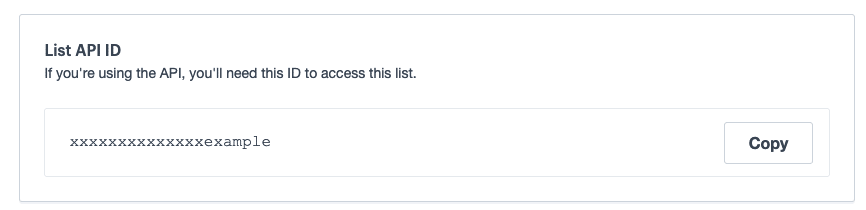
You can find any list ID via running the “Getting Subscriber Lists” method, or by heading into any list in your account and selecting Settings in the left menu. Scroll to the bottom of the page to find List API ID.
Input & Output
Input and output are currently supported in XML and JSON. When making an API request, you must specify both the input data format in the body (only relevant to POST and PUT requests), and the output data format you expect in the response. The format is specified using either a .json or .xml portion in the route, as illustrated below.
Note: All /transactional endpoints are JSON only. The rest of the API will return XML by default so we recommend including Accept: application/json in your header, or append all requests with .json.
When providing input you must ensure that your XML is well-formed or your JSON complies with the syntax, paying particular attention to character and entity encoding with both formats. Any input provided in the query string of any request should be url-encoded. An example of where this is required is the request for getting a subscriber’s details, which takes an email address as a query string parameter.
Providing Input
EXAMPLE Creating a client
To create a client using XML as the input data format, you would make a HTTP POST request:
<Client>
    <CompanyName>Client Company Three</CompanyName>
    <ContactName>Client Three</ContactName>
    <EmailAddress>[email protected]</EmailAddress>
    <TimeZone>(GMT+10:00) Canberra, Melbourne, Sydney</TimeZone>
    <Country>Australia</Country>
</Client>
To create a client using JSON as the input data format, you would make a HTTP POST request as follows:
HTTP/1.1 200 OK
Content-Type: application/json; charset=utf-8

{
    "CompanyName": "Client Company Three",
    "ContactName": "Client Three",
    "EmailAddress": "[email protected]",
    "TimeZone": "(GMT+10:00) Canberra, Melbourne, Sydney",
    "Country": "Australia"
}
Getting Output
EXAMPLE Getting a list of clients
To get a list of clients in XML format, you would make a HTTP GET request using the xml extension. You’ll receive a response in XML format similar to the following:
<?xml version="1.0" encoding="utf-8"?>
<Clients>

    <Client>
        <ClientID>4a397ccaaa55eb4e6aa1221e1e2d7122</ClientID>
        <Name>Client One</Name>
    </Client>
    <Client>
        <ClientID>a206def0582eec7dae47d937a4109cb2</ClientID>
        <Name>Client Two</Name>
    </Client>

</Clients>
The Content-Type header of the response will be set to “application/xml; charset=utf-8”.
To get a list of clients in JSON format, you would make a HTTP GET request using the json extension. You’ll receive a response in JSON format similar to the following:
HTTP/1.1 200 OK
Content-Type: application/json; charset=utf-8

[
    {
        "ClientID": "4a397ccaaa55eb4e6aa1221e1e2d7122",
        "Name": "Client One"
    },
    {
        "ClientID": "a206def0582eec7dae47d937a4109cb2",
        "Name": "Client Two"
    }
]
The Content-Type header of the response will be set to “application/json; charset=utf-8”.
Response status codes
The responses returned by the API are accompanied by meaningful HTTP status codes which represent the status of the request. Here’s the general approach we take when returning responses:
Success
GET requests will return a “200 OK” response if the resource is successfully retrieved.
POST requests which create a resource we will return a “201 Created” response if successful.
POST requests which perform some other action such as sending a campaign will return a “200 OK” response if successful.
PUT requests will return a “200 OK” response if the resource is successfully updated.
DELETE requests will return a “200 OK” response if the resource is successfully deleted.
Errors
If you attempt to authenticate with an invalid OAuth token, you’ll receive one of the following “401 Unauthorized” responses. See the Authenticating with OAuth section about how to request or renew an access token.
If you attempt to authenticate with an invalid API key, you’ll receive a “401 Unauthorized” response like this:
And if you attempt to use an invalid ID for a resource, you’ll also receive a “401 Unauthorized” response. For example, if you specified a client ID of a client which doesn’t belong to you, you’d receive the following response:
If there is an error in your input, you’ll receive a “400 Bad Request” response, with details of the error.
{"Code":250,"Message":"List title must be unique within a client"}If you attempt to request a resource which doesn’t exist, you’ll receive a “404 Not Found” response.
{
    "Code": 404,
    "Message": "We couldn't find the resource you're looking for.
    Please check the documentation and try again"
}If you attempt to use an agency resource as a non-agency customer, you’ll receive a “403 Forbidden” response. For example, if you tried to create or delete a client, you’d receive the following response:
If an unhandled error occurs on the API server for some reason, you’ll receive a “500 Internal Server Error” response.
Making things Pretty
You can add pretty=true to the query string of any request if you want the output to be indented in a nice human-readable format.
So, the following request without the pretty parameter:
https://api.createsend.com/api/v3.3/clients.json
would produce output similar to:
[{"ClientID":"4a397ccaaa55eb4e6aa1221e1e2d7122","Name":"Client One"},{"ClientID":"a206def0582eec7dae47d937a4109cb2","Name":"Client Two"}]And, the following request including pretty=true:
https://api.createsend.com/api/v3.3/clients.json?pretty=true
would produce output similar to:
[{"ClientID":"4a397ccaaa55eb4e6aa1221e1e2d7122","Name":"Client One"},{"ClientID":"a206def0582eec7dae47d937a4109cb2","Name":"Client Two"}]Rate Limiting
All /transactional endpoints are subject to API rate limiting. As part of every response, the HTTP headers will show your current rate limit status.
Headers
X-RateLimit-LimitThe maximum number of requests you can make before the rate limit is reset.X-RateLimit-RemainingThe number of requests remaining in the current rate limit window.X-RateLimit-ResetThe number of seconds before the rate limit is reset.
HTTP/1.1 429 Forbidden
Date: Tue, 20 Jan 2014 14:50:41 GMT
Status: 429 Forbidden
X-RateLimit-Limit: 60
X-RateLimit-Remaining: 0
X-RateLimit-Reset: 348
{
    "Code": 429,
    "Message": "Rate limit exceeded"
}